
Virtual Song Book doesn’t download your music automatically, so it’s worth taking a minute before a rehearsal or concert to save your parts while you still have a connection. Once downloaded, your music is available even when there’s no WiFi or signal at the venue.
There are three ways to download, depending on what you need.
Download a set (best before a gig)
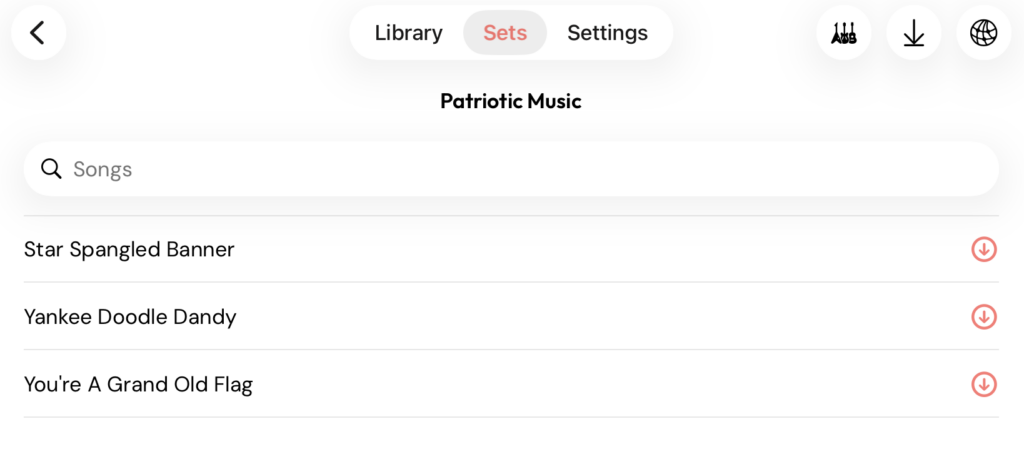
If your director has built a set for the performance, downloading the whole set at once is the fastest option. Where the button lives depends on your device:
- On a tablet: open the set and tap the download icon in the toolbar at the top-right.
- On a phone: open the set, tap the three-dot menu in the upper-right corner, then choose Download All.
Download your entire library
To make sure everything you have access to is available offline:
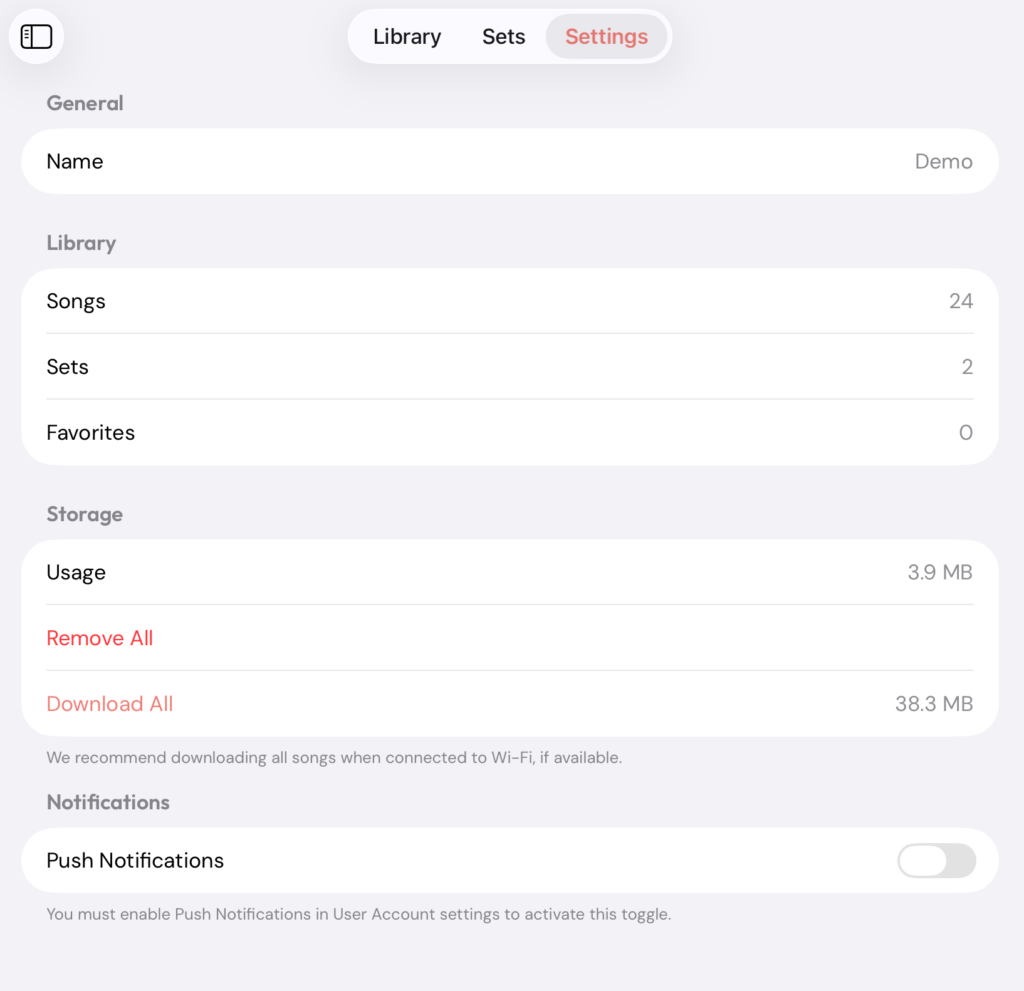
- Go to Settings and find the Storage section.
- Tap Download All.
This downloads every song available to you in the app.
Download a single song
You can also download songs one at a time by opening the song itself and downloading it there. The download icon next to a song in the list isn’t a button, it’s just a marker showing the song hasn’t been downloaded yet. This works for the occasional song, but for more than one or two it’s slower than the options above, so downloading a set or your whole library is usually the better choice.
Checking usage and freeing up space
The Storage section in Settings shows your total usage, so you can see how much space your downloaded music is taking up. If you need to clear out space on your device, tap Remove All (just above Download All) to remove your downloaded music. You can always download it again later while you’re connected.
Tip: Download ahead of time on WiFi so you’re not relying on venue signal right before you play.